Most Drupal projects begin with a question about content. If you're planning a new site, a redesign or a migration, you need to know what the site should hold. If you've just taken over a site someone else built, you need to know what it holds already.
Either way, the answer is the content model: the kinds of content a site has, the information each kind carries, and the way the pieces point at one another. Nearly every decision about a Drupal site depends on it, and it's surprisingly hard to see.
On a site that already exists, the model is spread across a few hundred configuration files, and the admin screens show you 1 content type at a time. On a site that's still being planned, it lives in workshop notes and whiteboard photos, which tend to drift from what gets built.
We built Nexus for both situations. Point it at a site's exported configuration and it draws the whole content model as an interactive diagram in a few seconds. If there's no site yet, you can sketch the model in the same tool, starting from scratch or from a template, and save it to pick up later. Nexus is free and open source, and it runs in your browser at nexus.drevops.com(Opens in a new tab/window).
What is a content model?
A content model is the set of building blocks a site's content is made from. Content types are the kinds of things you publish, such as blog posts and events. Fields are the pieces of information each one holds, like a title or a date. Vocabularies hold the tags and categories you sort content with, and media types describe the images, documents and videos in your media library. Many sites also use paragraph types, the reusable components editors stack together to build a page.
The connections between these pieces matter too. When a blog post's featured image field points at an image in the media library, that's a reference. References are what let content be reused, and they're also why changing a single piece can affect all the content that points at it.
That's why so much Drupal work starts from the content model. A migration estimate depends on knowing everything that has to move, and a redesign depends on knowing which fields each template can draw on. A new developer needs the map before they open the code, and a conversation with content editors goes better when everyone is looking at the same picture.
Where does the model live today?
In a built Drupal site, the content model is stored as configuration: YAML files that describe each content type and field, how each field is stored, and how it appears on forms and pages. Developers keep these files in the site's code repository, usually in a folder called config/sync or config/default.
Everything is in those files, spread across hundreds of them and written for Drupal to read. Working through them takes a developer and an afternoon, and afterwards the picture exists mostly in that developer's head. Teams draw diagrams by hand to share it, and a hand-drawn diagram goes out of date the first time someone adds a field without updating it.
Meet Nexus
Nexus reads the same configuration files Drupal does, so the diagram it draws matches the site.
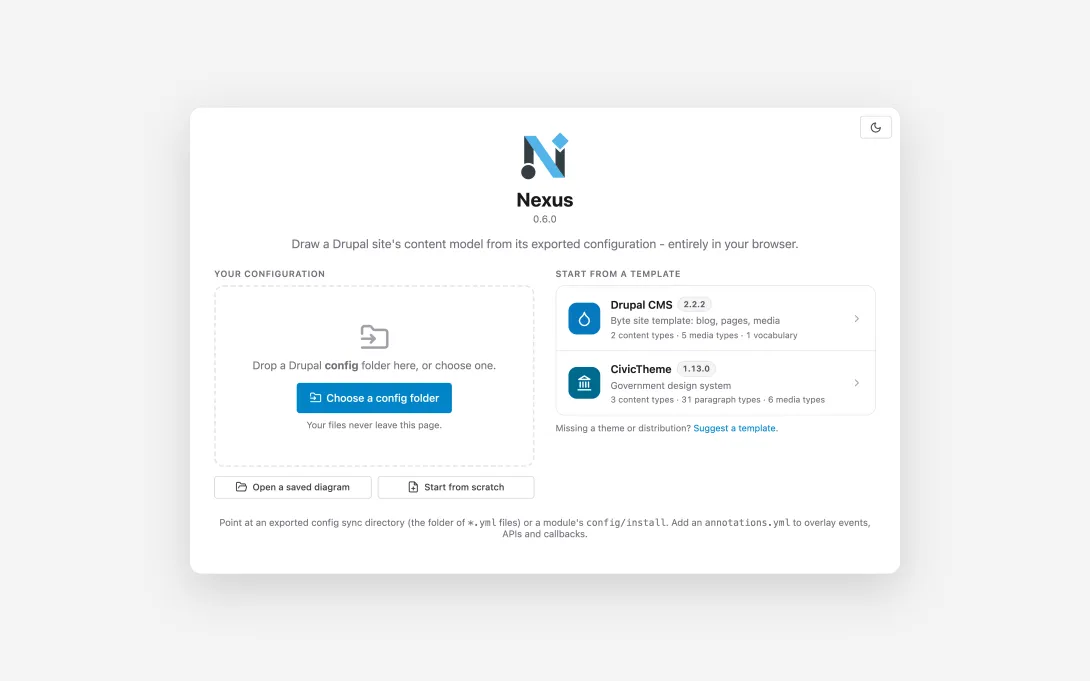
Drop the configuration folder onto the page, or pick it with the button. Nexus reads the YAML files, rebuilds the content types, vocabularies, media types, paragraph types and blocks along with their fields, works out which fields reference what, and lays the model out on a canvas you can pan and zoom.
If you don't have a configuration export to hand, the landing screen has 2 ready-made models drawn from exact public releases: Drupal CMS(Opens in a new tab/window) 2.2.2 with its Byte site template, and the CivicTheme(Opens in a new tab/window) 1.13.0 government design system. Every screenshot in this post comes from those 2 templates.
Your configuration stays in your browser
Site configuration describes how an organisation's website is put together, and client work often comes with a confidentiality agreement. Nexus runs entirely in your browser: it reads the files, builds the model and draws the diagram on your machine, which makes it safe to point at client work.
Your configuration leaves the browser only when you save or export a file yourself. Preferences such as your theme and colours are kept in the browser's local storage. The privacy section of the README(Opens in a new tab/window) sets out exactly what is kept and where.
What you see when it opens
The diagram opens with every entity and field on show, stacked in columns.
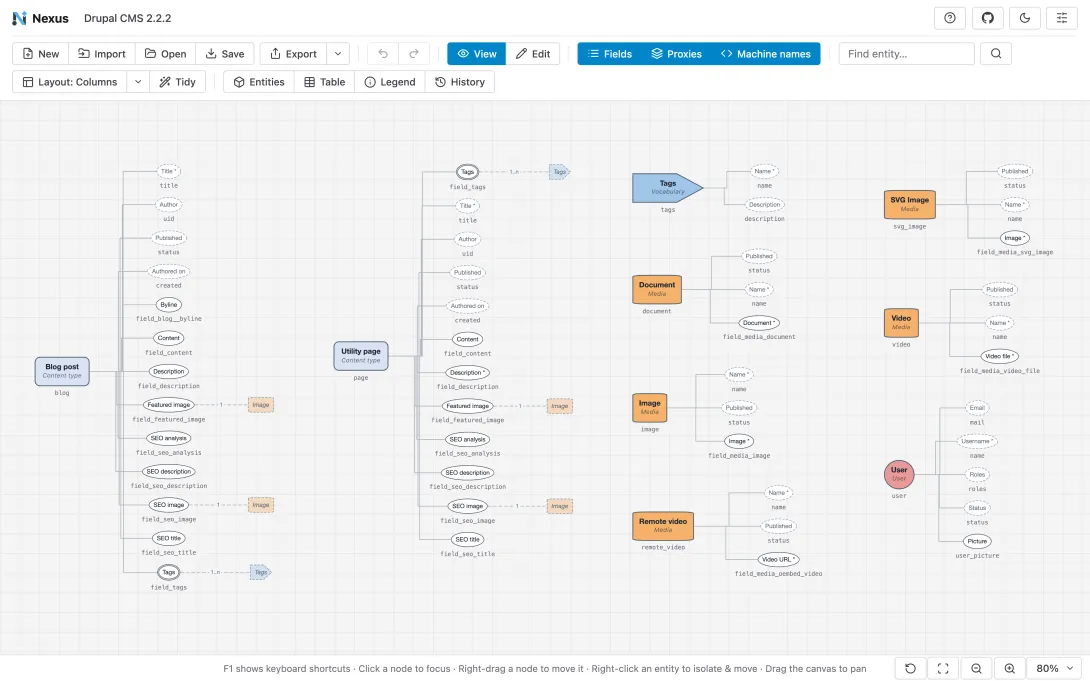
Each kind of entity has its own colour and shape, so you can tell a content type from a media type before reading a label. Content types are rounded rectangles, vocabularies are tags, media types are barrels and paragraph types are rectangles with a cut corner.
Fields sit beside the entity that owns them. A single border marks a field with 1 value, a double border marks a field that can hold several, and a dashed border marks the system fields Drupal adds itself. An asterisk after a label means the field is required, and each machine name sits underneath in monospace, ready to copy into code or a ticket.
References are arrows labelled with their cardinality: 1 means exactly 1 item and 1..n means as many as the editor likes. By default each reference ends at a faded copy of its target next to the field, which keeps the lines short on a large site.
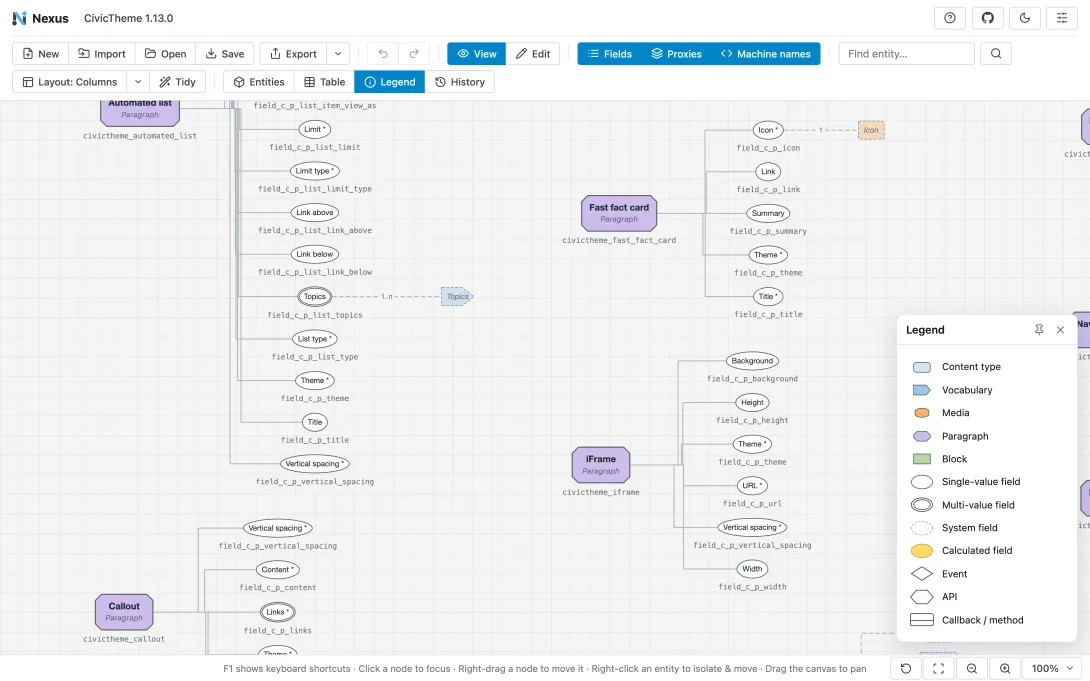
The legend panel explains every symbol for anyone who is new to the diagram.
From the whole picture to a single detail
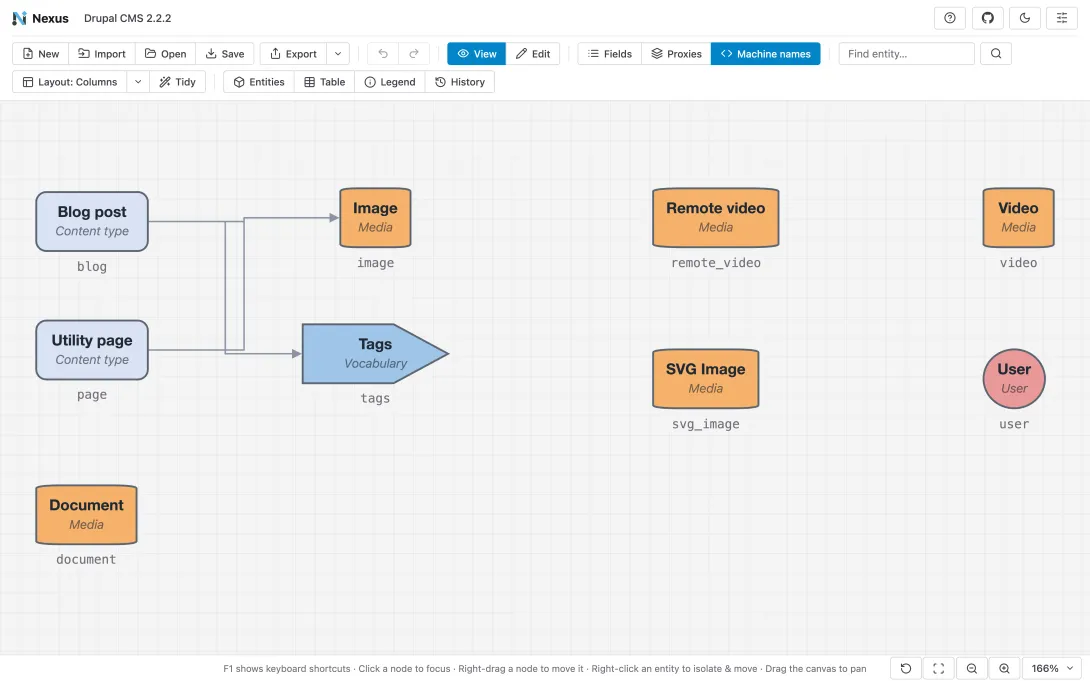
A full content model is a lot to take in, so Nexus has a few ways to narrow it down. Hiding the fields collapses the diagram to an entity-only overview, which shows how the main pieces relate and works well on a shared screen in a workshop.
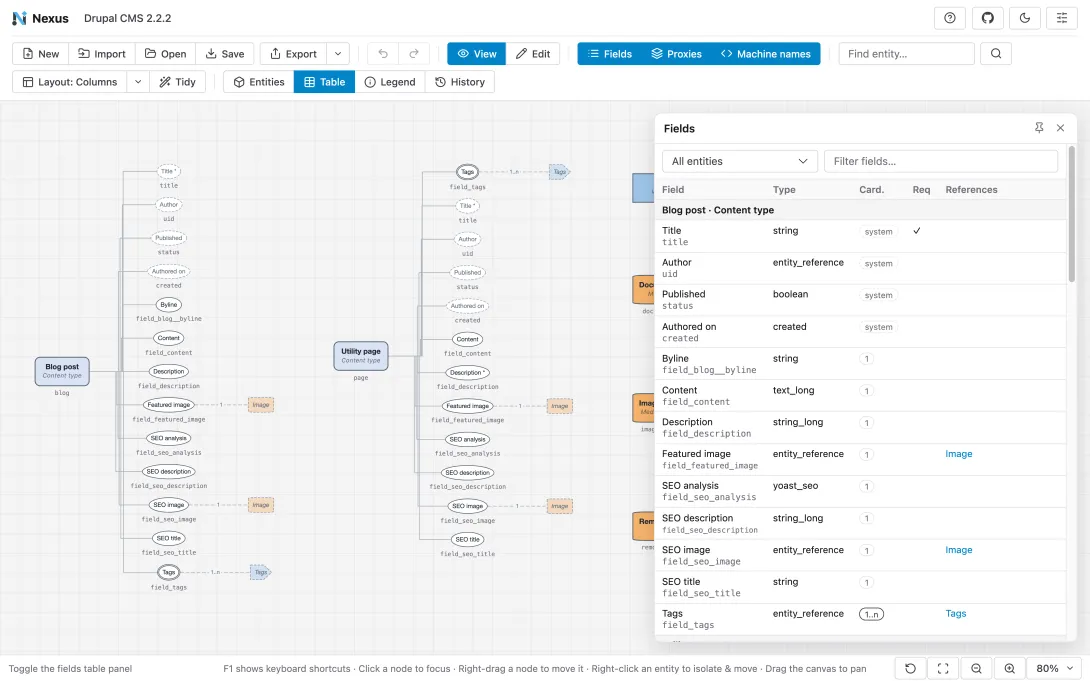
The field table lists every field with its type, its cardinality, whether it's required and what it references. You can search it, filter it to 1 entity, or export it as a CSV file to use as a checklist for a migration or an audit.
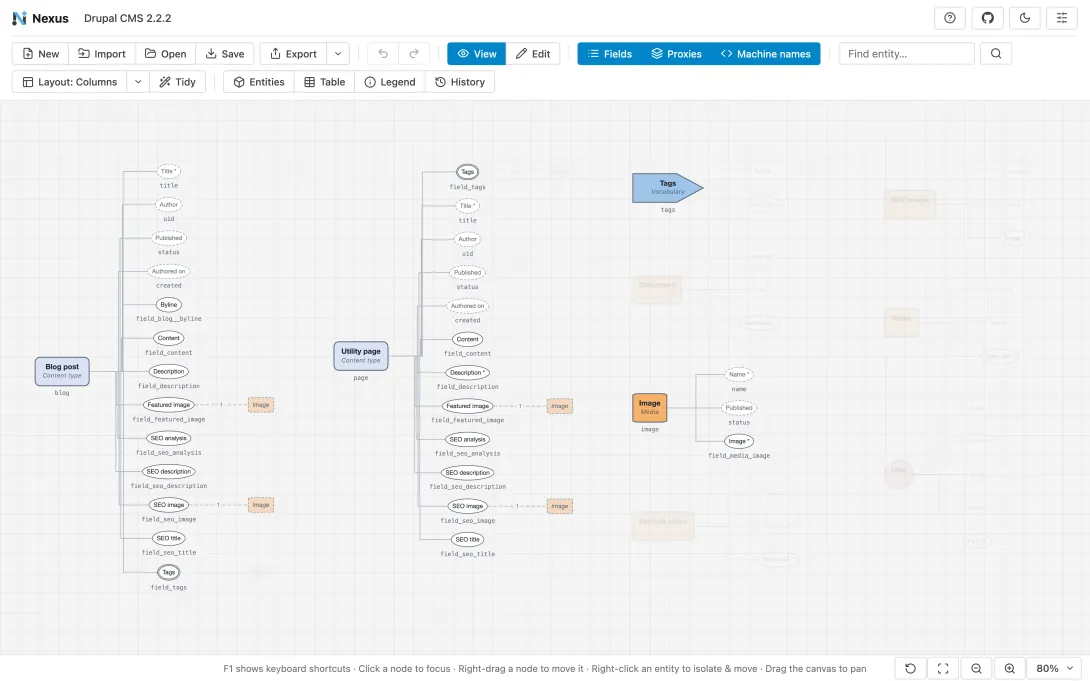
Clicking an entity focuses it and its connections and fades everything else. Find entity does the same from the search box, which helps on a site with dozens of paragraph types.
Sketching a model before it exists
Planning starts in Edit mode, where a palette appears under the toolbar. From there you add content types, vocabularies, media types, paragraphs, blocks and fields, connect a field to the entity it should reference, and change any of them in the Inspector, including the label, machine name, field type, cardinality and required flag. Any item can also carry a note, which shows as a badge on the canvas.
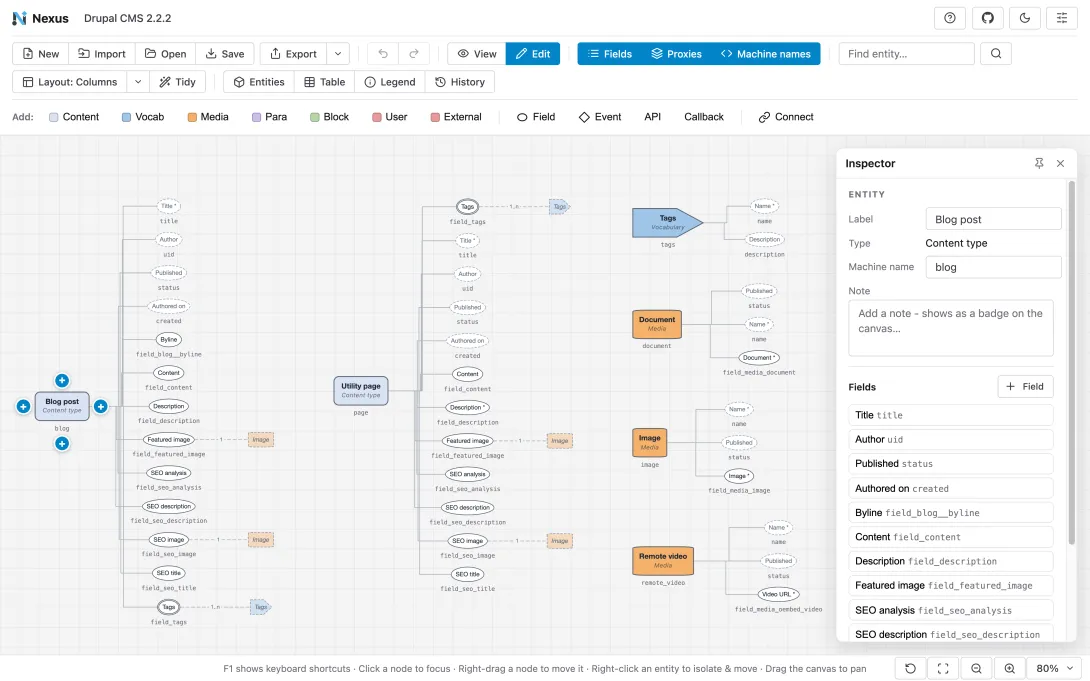
You can start from an empty canvas or from a template. Some of a site's architecture never appears in Drupal's configuration, such as an external API the site calls or a callback that syncs registrations. Nexus can draw those too, from the palette or from an annotations.yml file placed next to the configuration.
When the model is ready, save it as a .nexus.json document. Opening it later brings everything back, with the layout exactly as you left it.
Everything Nexus supports
This list covers the current release, 0.6.0.
Bringing a model in
- Choose or drag a Drupal configuration folder, either a site's config sync directory or a module's
config/install. Nexus reads only the YAML files, locally. - Load a template: Drupal CMS 2.2.2 or CivicTheme 1.13.0, each pinned to its release.
- Open a diagram you saved earlier as a
.nexus.jsonfile. - Start from scratch with an empty model.
- Add an
annotations.ymlfile to the folder to overlay events, APIs, callbacks and calculated fields.
Exploring
- Lay the model out in columns, left to right or top to bottom, and use Tidy to straighten a diagram after you've moved things around.
- Show or hide fields, proxies and machine names.
- Find an entity by name, or click any entity to focus it and its connections.
- Right-drag a node to move it, or right-click an entity to isolate it so it moves together with its fields.
- Browse every bundle in the Entities panel, with filters by entity type and a field count for each.
- Search the field table, which lists every field's type, cardinality, requiredness and references.
- Check any symbol in the legend.
- Zoom, fit and pan, and arrange panels so they float over the canvas or dock in a resizable side rail.
Editing
- Add content types, vocabularies, media, paragraphs, blocks, users and external entities from the palette, with a click or by dragging them onto the canvas.
- Add fields, reuse the definition of a field that already exists, and draw references with Connect.
- Add events, APIs and callbacks for the parts of the architecture that configuration doesn't hold.
- Edit or delete any node in the Inspector, and attach a note to it.
- Undo and redo every change, and step back through your last 200 changes in the History panel.
Saving and exporting
- Save the diagram as a
.nexus.jsondocument that keeps the model, the layout, the colours and symbols, any custom types and the panel arrangement, then open it again later. - Name the diagram, and the name carries over to every file you save or export.
- Export the whole canvas as PNG or SVG, or the field table as CSV. The Export button remembers the last format you picked.
Configuring
- Switch between light and dark themes.
- Recolour any entity type, swap its symbol or add entity types of your own in Settings. Your choices are remembered in the browser and apply to every diagram you open.
- Use keyboard shortcuts for most buttons. F1 labels every button on screen with its shortcut.
Running it
- Everything runs client-side in a modern browser.
- Host your own copy on any static web server.
- Nexus is released under GPL-2.0-or-later, the same licence as Drupal.
Where we expect it to help
| Situation | How Nexus helps |
|---|---|
| Planning a new site | Sketch the content model in Edit mode, from scratch or from a template, and save it for the next workshop |
| Planning a migration or rebuild | Export the field table as a checklist of everything that has to move |
| Taking over a site | See the whole content model before you change anything |
| Working with editors and stakeholders | Hide the fields and walk through the entity overview together |
| Onboarding a developer | Hand over a diagram with every machine name on show |
Try it on your own site
Open nexus.drevops.com(Opens in a new tab/window) in any modern browser and choose your site's configuration folder, or load a template to look around first. Pressing F1 labels every button with its keyboard shortcut, which is the quickest way to learn the toolbar.
The code is on GitHub(Opens in a new tab/window), and ideas, bug reports and template suggestions are welcome there as issues.
Planning a new content model, a rebuild or a migration?
We are a Melbourne-based digital agency that builds and supports Drupal websites, and much of that work starts with understanding what a site holds, or what it needs to hold. If you'd like a second pair of eyes on yours, we're glad to talk it through.